






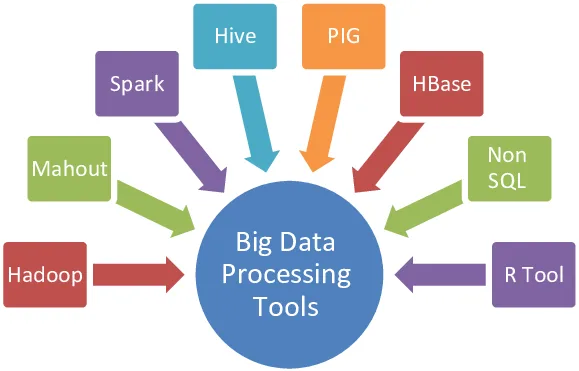
How to Install Hadoop, Hive, and HBase on WSL | Windows 11
📦 What We Are Setting Up
-
WSL with Ubuntu
-
Java 8 (because Hadoop/Hive are allergic to newer Java)
-
Hadoop 3.3.6 (pseudo-distributed)
-
Hive 3.1.3 (with built-in Derby Metastore)
-
HBase 2.4.17 (lightweight standalone)
ðŸ› ï¸ Step 1: Install WSL (Ubuntu)
-
Open PowerShell as Administrator.
-
Run:
wsl --install -
Restart the computer if it asks.
-
Set your Ubuntu username and password after reboot.
✅ WSL Ready!
ðŸ› ï¸ Step 2: Update Ubuntu Packages
In Ubuntu terminal:
sudo apt update && sudo apt upgrade -y
Always update before installing stuff, bro.
ðŸ› ï¸ Step 3: Install Java 8
Java is non-negotiable for Hadoop.
Install it:
sudo apt install openjdk-8-jdk -y
Verify:
java -version
You should see something like:
openjdk version "1.8.0_xxx"
ðŸ› ï¸ Step 4: Install Hadoop 3.3.6
🔹 Download Hadoop
cd ~
wget https://downloads.apache.org/hadoop/common/hadoop-3.3.6/hadoop-3.3.6.tar.gz
🔹 Extract Hadoop
tar -xvzf hadoop-3.3.6.tar.gz
mv hadoop-3.3.6 /usr/local/hadoop
🔹 Set Environment Variables
Edit ~/.bashrc:
nano ~/.bashrc
Add at the bottom:
export HADOOP_HOME=/usr/local/hadoop
export PATH=$PATH:$HADOOP_HOME/bin:$HADOOP_HOME/sbin
export JAVA_HOME=/usr/lib/jvm/java-8-openjdk-amd64
Apply changes:
source ~/.bashrc
🔹 Configure Hadoop
Edit hadoop-env.sh:
nano /usr/local/hadoop/etc/hadoop/hadoop-env.sh
Set Java path:
export JAVA_HOME=/usr/lib/jvm/java-8-openjdk-amd64
Edit core-site.xml:
nano /usr/local/hadoop/etc/hadoop/core-site.xml
Paste:
<configuration>
  <property>
    <name>fs.defaultFS</name>
    <value>hdfs://localhost:9000</value>
  </property>
</configuration>
Edit hdfs-site.xml:
nano /usr/local/hadoop/etc/hadoop/hdfs-site.xml
Paste:
<configuration>
  <property>
    <name>dfs.replication</name>
    <value>1</value>
  </property>
</configuration>
🔹 Format Hadoop
hdfs namenode -format
🔹 Start Hadoop
start-dfs.sh
start-yarn.sh
Check Namenode UI âž” Open browser:
http://localhost:9870
ðŸ› ï¸ Step 5: Install Hive 3.1.3
🔹 Download Hive
cd ~
wget https://downloads.apache.org/hive/hive-3.1.3/apache-hive-3.1.3-bin.tar.gz
🔹 Extract Hive
tar -xvzf apache-hive-3.1.3-bin.tar.gz
mv apache-hive-3.1.3-bin /usr/local/hive
🔹 Set Environment Variables
Edit ~/.bashrc:
nano ~/.bashrc
Add at the bottom:
export HIVE_HOME=/usr/local/hive
export PATH=$PATH:$HIVE_HOME/bin
Apply changes:
source ~/.bashrc
🔹 Configure Hive
Create hive-env.sh:
cp $HIVE_HOME/conf/hive-env.sh.template $HIVE_HOME/conf/hive-env.sh
nano $HIVE_HOME/conf/hive-env.sh
Add:
export HADOOP_HOME=/usr/local/hadoop
export JAVA_HOME=/usr/lib/jvm/java-8-openjdk-amd64
🔹 Initialize Metastore
schematool -dbType derby -initSchema
🔹 Start Hive CLI
hive
Done! You're inside Hive now.
ðŸ› ï¸ Step 6: Install HBase 2.4.17
🔹 Download HBase
cd ~
wget https://downloads.apache.org/hbase/2.4.17/hbase-2.4.17-bin.tar.gz
🔹 Extract HBase
tar -xvzf hbase-2.4.17-bin.tar.gz
mv hbase-2.4.17 /usr/local/hbase
🔹 Set Environment Variables
Edit ~/.bashrc:
nano ~/.bashrc
Add at bottom:
export HBASE_HOME=/usr/local/hbase
export PATH=$PATH:$HBASE_HOME/bin
Apply:
source ~/.bashrc
🔹 Configure HBase
Edit hbase-site.xml:
nano /usr/local/hbase/conf/hbase-site.xml
Paste:
<configuration>
  <property>
    <name>hbase.rootdir</name>
    <value>hdfs://localhost:9000/hbase</value>
  </property>
  <property>
    <name>hbase.zookeeper.property.dataDir</name>
    <value>/usr/local/hbase/zookeeper</value>
  </property>
</configuration>
🔹 Start HBase
start-hbase.sh
🔹 Open HBase Shell
hbase shell
📋 Quick Commands Cheat Sheet
| Tool | Start Command |
|---|---|
| Hadoop DFS | start-dfs.sh |
| Hadoop YARN | start-yarn.sh |
| Hive CLI | hive |
| HBase | start-hbase.sh then hbase shell |
ðŸ›¡ï¸ Important Pro Tips
-
Hadoop must be running before starting Hive or HBase.
-
If Hive says
connection refused, it means Hadoop isn’t started yet. -
Always
source ~/.bashrcafter setting new environment variables. -
WSL can choke RAM if you don’t cap it — add
.wslconfigfile if needed.
ðŸ Conclusion
Setting up Hadoop, Hive, and HBase on WSL isn't impossible you just need patience, attention to small configs, and correct Java version.
Now you’ve got a mini Big Data lab running inside your Windows machine. No VM needed. No Docker drama.